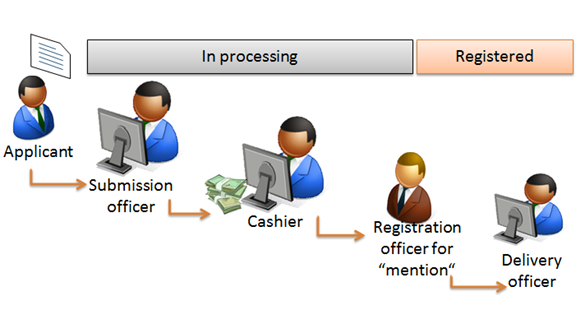
Documents and deeds registration at public counter involves these steps:
•Submission and taxation;
•Payment collection;
•Registration confirmation;
•Delivery of printouts.
Figure 1 Registration process at public counter
Submission and taxation
1. Applicant submits the registration dossier to the public counter (front office).
2. The submission officer starts new public registration: specifies and confirms document subtype (1 Start new public registration).
Note! Document subtype must be chosen responsibly. In case the document subtype is chosen incorrectly, you will have to cancel the current registration (3 Cancel registration) and to start new by choosing correct document subtype.
3. When document subtype is confirmed, submission entry is created (registration record is called "submission entry" until it is in state "In processing"):
•Tracking number is assigned to the submission entry record.
•Submission entry state is "In processing".
•Submission entry record is saved in a submission dashboard list and is automatically assigned to the user who created it. User can find submission entry record and continue data entering from a submission dashboard list. If the user cannot finish entering and scanning he can unclaim the record and then it can be re-assigned to another submission officer. (3.2.6 Unclaim).
•Submission entry record also appears in a Full view list (3.3 Full view), where other users can review it.
4. The submission officer starts document data entering:
•scans or uploads scanned documents (1.1 Scan document);
•captures data (1.2 Enter deed data);
•adds linked registrations (1.3 Add linked registrations);
•enters taxation parameters and calculates duties and taxes automatically, or enters taxes and duties manually (1.4 Enter taxation data);
•Applies exemptions, if any (1.4 Enter taxation data).
5. If the applicant refuses to continue registration (applicant can withdraw registration until payment is confirmed) or submission officer finds any inconsistencies with the applicable legislation, he can reject/withdraw the submission entry record (5 Reject/Withdraw). The rejection letter will be generated, which will be printed and delivered to the applicant. The generated rejection letter will be stored in a Printouts list, together with all other printouts of the system (3.5 Printouts). When rejection is confirmed, the registration is completed and removed from the Submission dashboard list.
6. If there’s a need to specify some documents or details, submission officer can request for clarification (4 Request clarification). The request for clarification letter will be generated, which will be printed and delivered to the applicant. The generated request for clarification letter will be stored in a Printouts list, together with all other printouts of the system. When the clarification request is confirmed, the registration is completed and removed from the Submission dashboard list.
7. If the user created duplicated or mistaken records, he can cancel the submission entry registration (3 Cancel registration). When the submission entry is cancelled, it is removed from the Submission dashboard list.
8. If submitted documents are correct and no data is missing, submission officer completes data entering and confirms (2 Confirm submission) that all required data is entered to the system:
•The receipt slip and payment notice are generated when submission officer confirms that data entering is finished. Receipt slip and payment notice are accessible in:
•Printouts list together with all other printouts of the system.
•tab “Printouts” of this particular registration.
•The registration is removed from the submission dashboard list to the Payment dashboard list.
•Document/Deed data cannot be edited.
•The e-mail with attached payment notice is sent to the applicant to the e-mail address indicated in general data.
9. In case after the confirmation submission officer notices that payable taxes amount is not accurate, he can create a new payment notice from the Full view list and correct the payable amount (Create new regular payment notice).
Payment collection
10. When scanning, data entering and taxation is confirmed, the applicant can pay at the cashiers counter. The cashier can print payment notice in the Printouts list on request.
11. If the applicant doesn’t pay in the predefined period (which is editable in the system by administrator and currently is set to 8 days), the registration is automatically rejected. The registration record is removed from the Payment dashboard. The rejection letter is generated and available in the Delivery dashboard. The rejected registration record will be available in a Full view list.
12. The system will track if the registration delay date is not reached in cases where the taxes and duties were calculated without the penalty for delay but delay is applicable for this type of deed. If the applicant doesn’t pay, the system will recalculate the taxes and duties and will generate a new payment notice which will be automatically sent to the applicant via email. The registration record stays in the Payment dashboard until applicant pays or paying delay date is reached.
13. In case before the payment is submitted the cashier notices that payable taxes amount is not accurate, he can create a new payment notice from the Full view list and correct the payable amount (Create new regular payment notice)
14. When the applicant pays, the cashier confirms payment (2.2 Confirm transaction):
•The payment receipt slip for a registration is generated, and printed for the applicant.
•The title number is generated for the registration record and registration record is moved to the Confirmation dashboard.
15. In case the payable amount was not correct but it turns out only after the payment was submitted and confirmed, during the law defined period the inaccuracies can be corrected:
•If the payable taxes in the payment notice were lower than they ought to be, the system user can create a new underpaid payment notice (Create underpaid payment notice) and issue underpaid payment notice to the applicant. Applicant will be able to pay the missing amount at the cashier’s counter with the issued payment notice.
•If the payable tax amount was higher than it ought to be, the system user can create an overpaid payment notice (Create overpaid payment notice) and issue overpaid payment notice to the applicant. Applicant will be able to withdraw overpaid amount with this overpaid payment notice.
Registration confirmation
16. If there are inconsistencies with applicable legislation with the registration record, the registration officer for “mention” chooses to reject registration (1.2 Reject registration): the officer indicates/selects rejection reason and the system generates rejection letter which will be stored in a Printouts list, or Delivery dashboard.
17. If the payment is submitted and there are no inconsistencies between applicable legislation and registration record, the registration officer for “mention” confirms the registration and electronically signs the eDocument and annexes or copies if there are any (1.1 Approve registration):
•The system generates the eSeal and incorporates eSeal in the eDocument.
•The registration record state is changed to "Registered"
•The registration record is created in the eRegistry list.
•The PDF printout a copy of eSeal is generated and printed on the hard copy of the submitted document by the officer.
Printouts delivery
18. The applicant receives the registered documents with the eSeal at the delivery counter (1.1 Mark document as delivered). The delivery officer records the delivery to complete the registration process. The delivered printouts are removed from the Delivery dashboard.
19. If the applicant does not arrive to receive his printouts, the delivery officer can unpick the registration record from the Delivery dashboard to finish the process (1.4 Unpick registration record).