 “Payment notice” – shows payment notice main
information (described in 1.4.1 Enter taxation parameters);
“Payment notice” – shows payment notice main
information (described in 1.4.1 Enter taxation parameters);Taxation data tab allows to enter taxation parameters and to calculate taxes and duties. The window is divided into 4 data blocks:
•“Payment notice” – shows payment notice main
information (described in 1.4.1 Enter taxation parameters);
•“Deed parameters” – in this data block you have to enter document/deed information that is required for tax calculation (described in 1.4.1 Enter taxation parameters);
•“Object data” – all objects entered in the “Deed data” tab are shown in this part of the window. You can enter each object taxation parameters that are required for tax calculation. Note that all document/deed objects have to be already entered in the tab “Deed data”. (for detailed object data entering description please look in chapter 1.4.1 Enter taxation parameters)
•“Payable taxes and duties” – in this area calculated taxes will be displayed, after object taxation parameters are entered. In this part of the window you can also enter taxes manually or enter exemptions. (for detailed description please look to chapters 1.4.2 Calculate taxes automatically 1.4.3 Enter taxes manually 1.4.4 Enter exemptions).
When all taxation parameters are entered and duties and taxes calculated, you can confirm submission to send the record to the cashier for payment collection (for detailed description please look to chapter 2 Confirm submission).
If there are any inconsistencies with the applicable legislation, you can reject the submission entry record (for detailed description please look to chapter 5 Reject/Withdraw).
If there’s a need to specify some documents or data, you can request for clarification (for detailed description please look to chapter 4 Request clarification).
If the submission entry record is mistaken or duplicated, you can delete the submission entry record (for detailed description please look to chapter 3 Cancel registration).
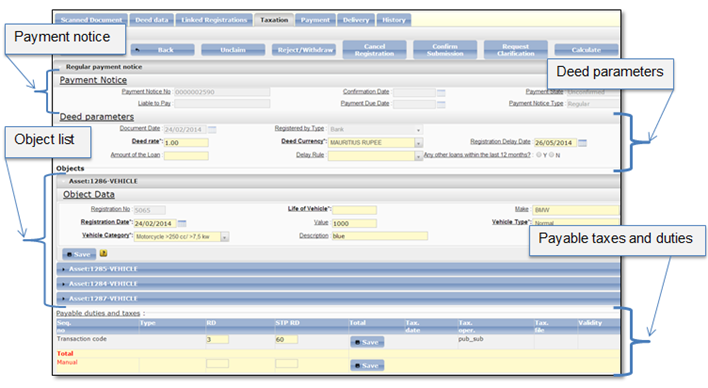
Figure 86 Taxation data window