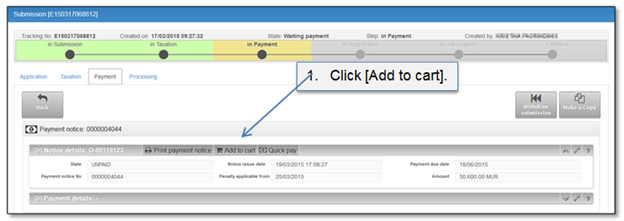
A user can add several different payment items to the cart and pay for them in one payment transaction. .
If user wants to add submission entry as payable item to the cart, payment tab must be opened.
Figure 44 Add to cart
The payment item appears in the cart and a number indicating the quantity of payable items added to the cart is displayed. This number will be removed after payment order is confirmed (see 4.5 How to confirm payment order). You can click on a cart icon to see a list of added items and continue payment.
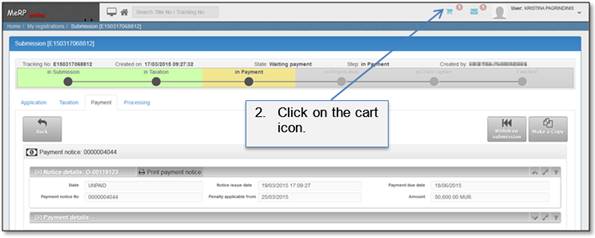
Figure 45 Cart icon
[Add to cart] button is available in a list of payment notices called “My payments”. To open this list, click [My payments] button in a “Home” page. Note that only submissions in payment step are selected by default. In order to find any payment notice – you need to change the state
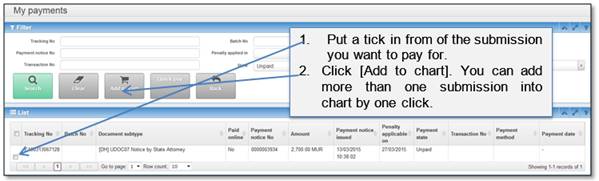
Figure 46 My payment page
All added submissions will be shown in the chart:
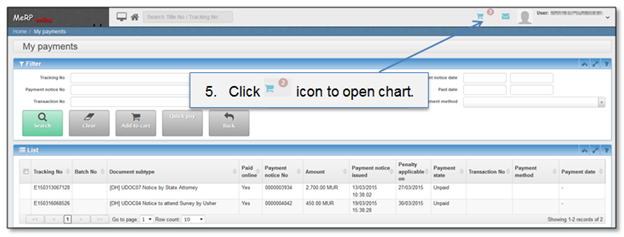
Figure 47 Open cart
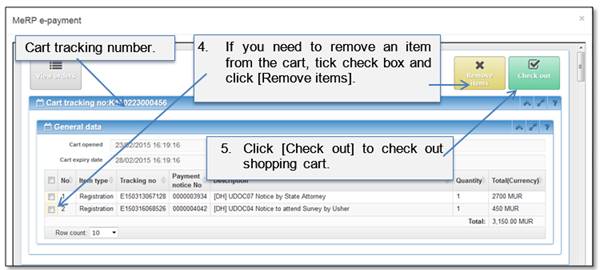
Figure 48 Cart
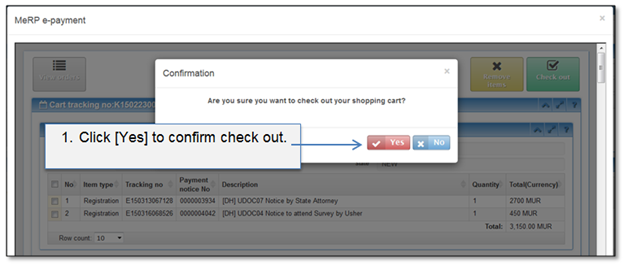
Figure 49 Check out confirmation